

Text Snip
Photograph paper. Paste on a Mac.
This app scans paper and documents and reads the text (text recognition / OCR). Copy only the lines you need as text. It cuts the work of retyping letters, invitations, name lists, and estimates from scratch.
Photograph on iPhone, and the recognized text is arranged as titles, paragraphs, bullet lists, tables, and barcodes. Paste on a Mac or iPad.
App Concept
Section titled “App Concept”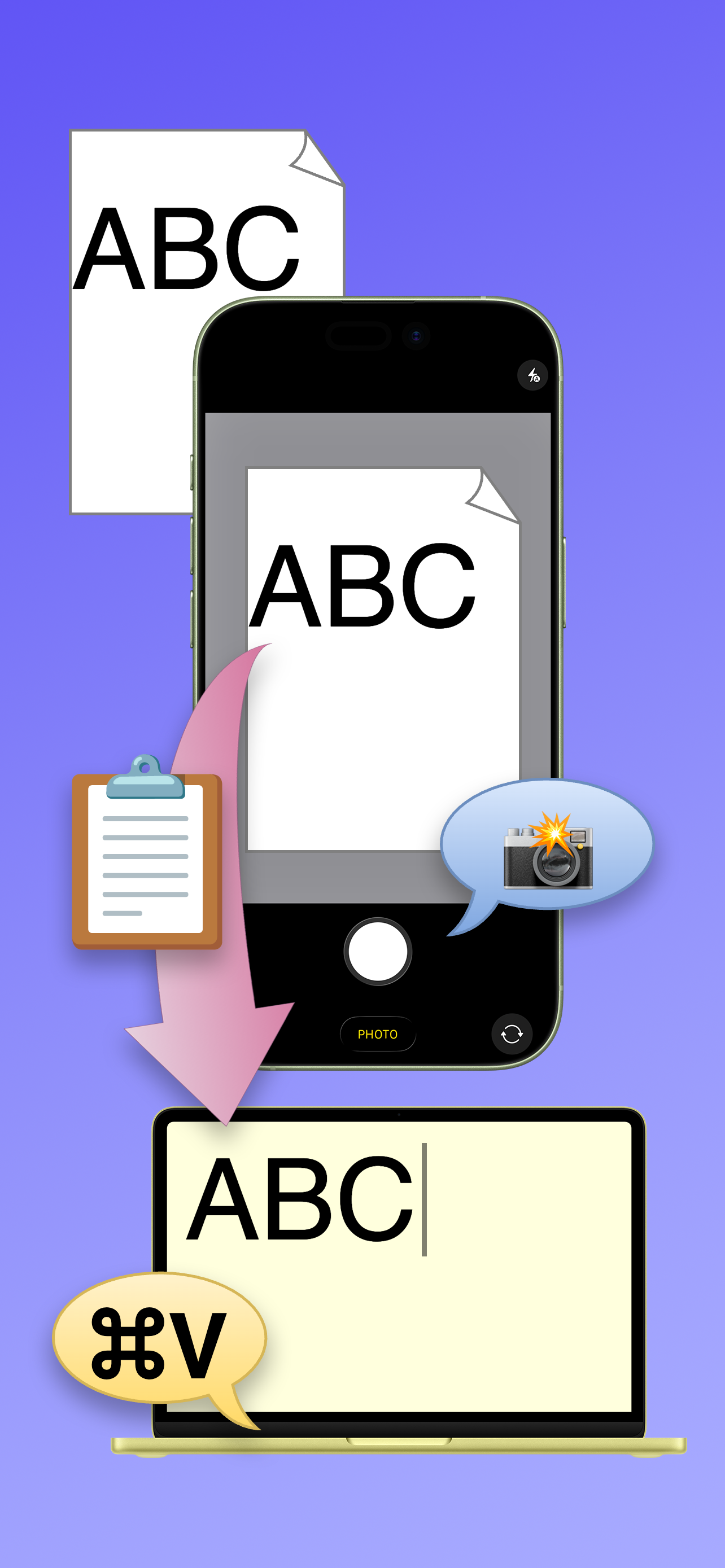
Capture & copy → paste on Mac
I built this app after being asked to create a guest list on a computer for a wedding, funeral, or similar ceremony — and finding it tedious to retype by hand the names written in a paper register.
Modern smartphones usually include camera OCR for text recognition, and my iPhone can recognize text in the built-in Photos app too. But when you have a lot to enter, the steps are surprisingly cumbersome.
- Photograph the paper with the camera
- Open the photo in the Photos app and tap the text recognition button
- Drag with your finger to select the text you want
- Tap the selection to show the menu, then tap “Copy”
- If clipboard sharing with your computer is available, as with Universal Clipboard, you can paste as-is; otherwise, paste into Mail or another app to share
One or two images or snippets are manageable, but for something like building a guest list from a large amount of text, it becomes a real chore.
If you can skip that friction and copy right after capture, then paste on a computer, data entry becomes much easier.
How to Use the App
Section titled “How to Use the App”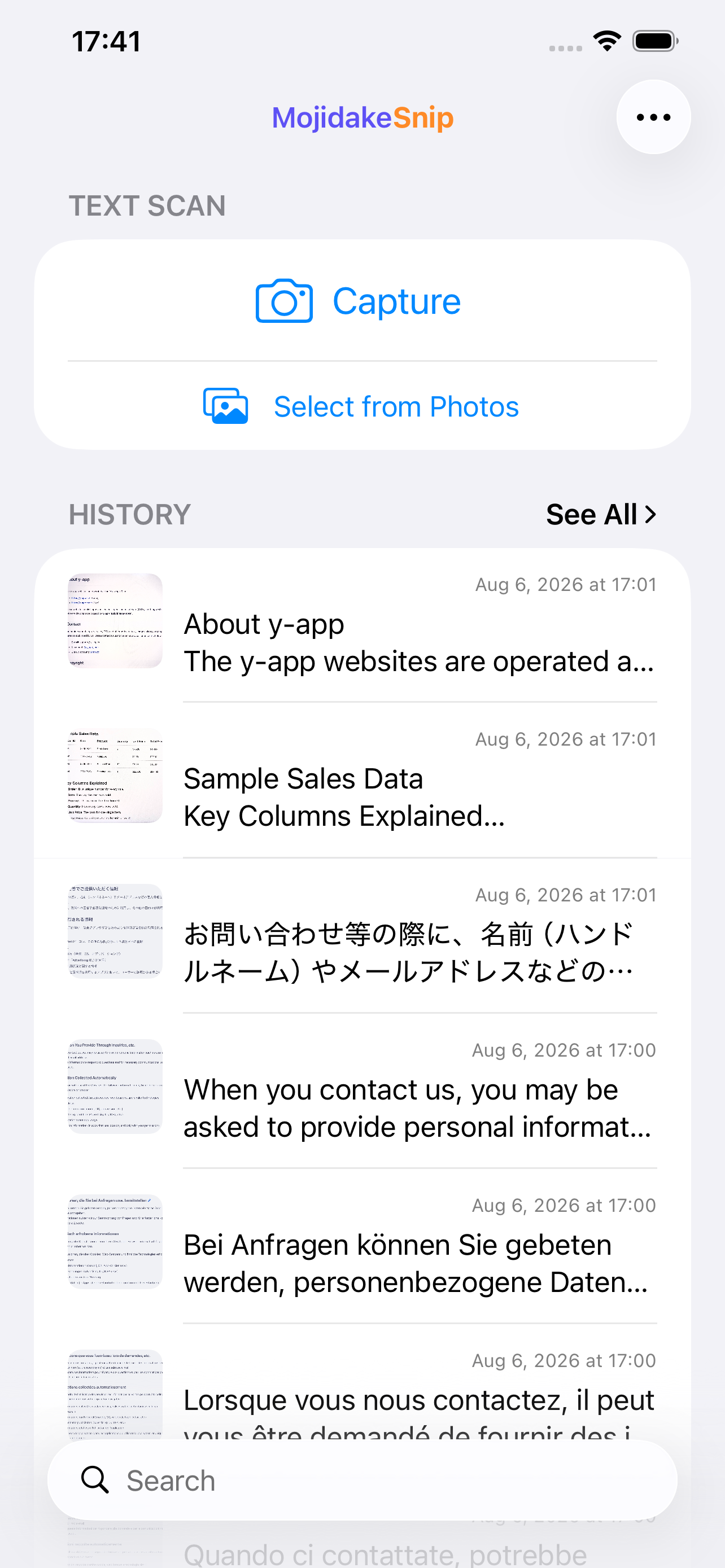
Home screen
On the home screen that appears when you open the app, tap Capture, Select from Photos, or Load from Clipboard.
Or select images in the Photos app (or similar) and use Share to send the images to this app.
The home screen also shows History of past recognized images. You can open items one by one, or tap See All to browse and copy the full history at once — handy when batch-processing text from many images.
Recognized text detail screen
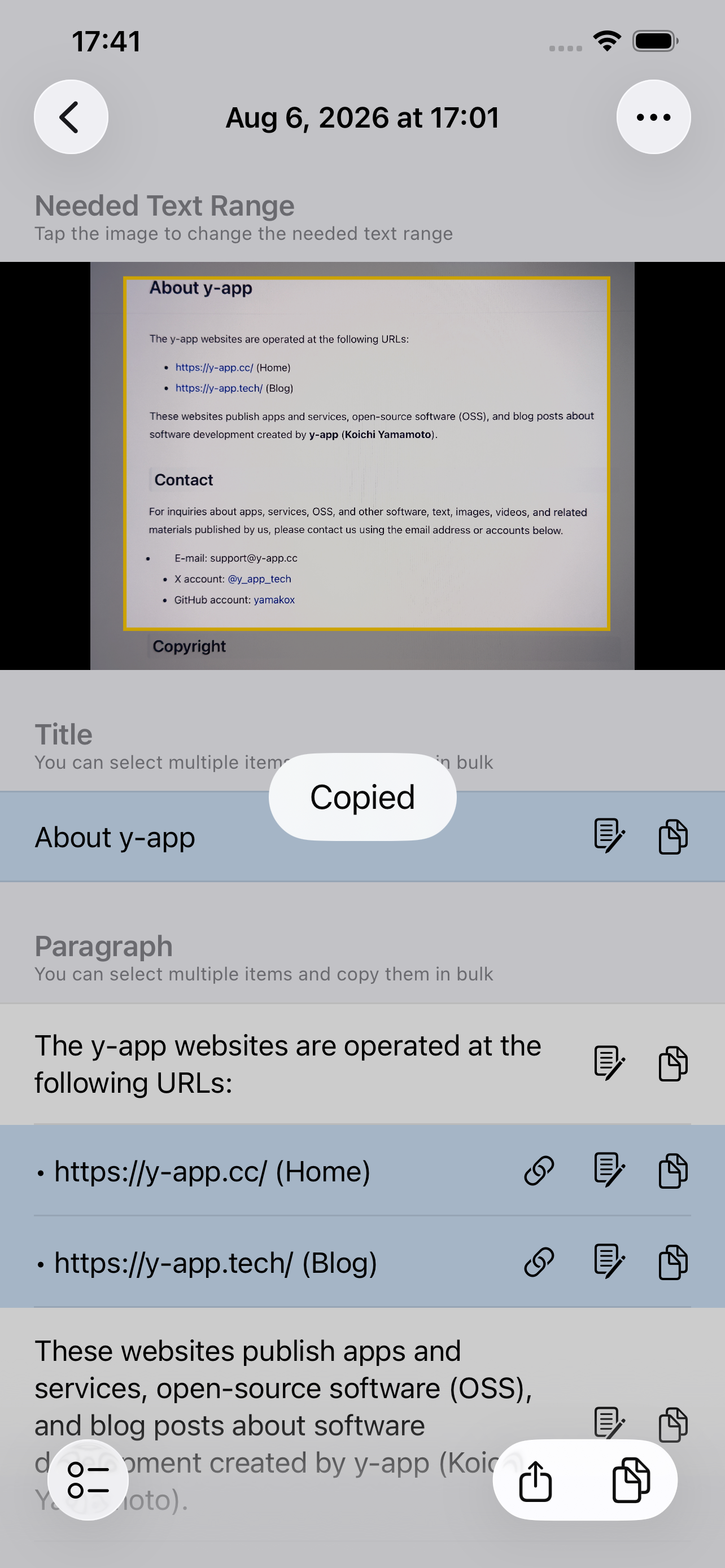
After you capture or select a photo, text scanning starts immediately and the text is copied to the clipboard (with the default App Settings).
The screen shows details of the recognized text. Text is listed by type: Title, Paragraph, List, Table, and Barcode. Tables can be copied in TSV (tab-separated) format, so you can paste them straight into a spreadsheet.
To narrow down the text you need in the image, tap the image to change the Needed Text Range.
Tap the Copy icon at the right end of a text row to copy that single item. You can also select multiple texts, as in the screenshot, and bulk-copy them with the Copy button in the toolbar at the bottom right.
Tap the page and pencil icon to the right of the text to Edit Text that was misrecognized.
If an address, phone number, or URL is found in the text, a third icon appears on the right, and you can use Add to Contacts, Call, Show in Maps, or Open Link.
Select one or more texts and tap Share in the toolbar at the bottom right to send the text to apps such as AirDrop, Messages, Mail, or Notes.
Needed Text Range
Section titled “Needed Text Range”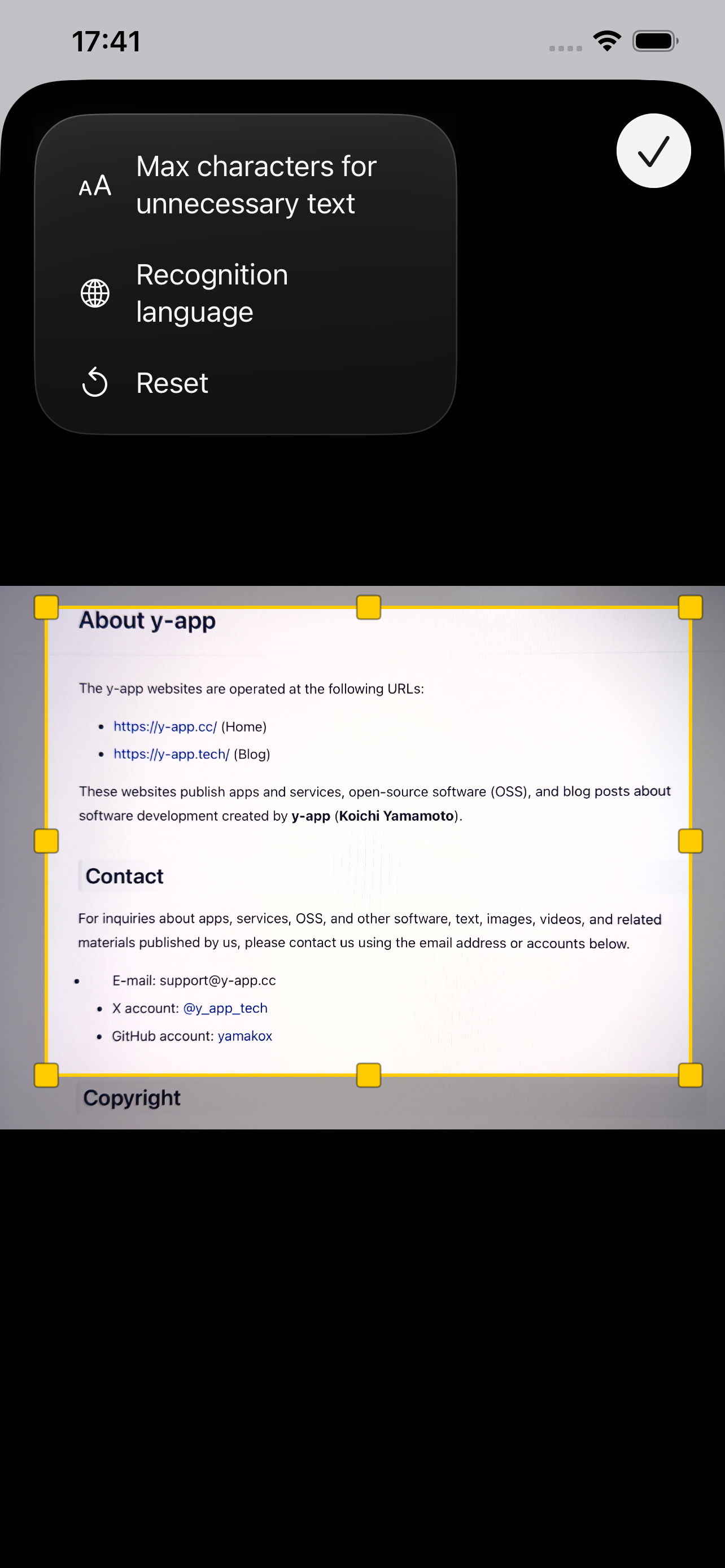
Needed Text Range editor
Unwanted characters often appear at the edges of a captured image, so with the default App Settings, a 10% margin from each edge is treated as an exclusion range. You can change this by moving the yellow frame on the screen on the left.
Also with the default App Settings, text of 2 characters or fewer is treated as unnecessary. Tap the button at the top left of this screen and choose Max characters for unnecessary text to change that character count.
You can also choose Recognition language to change the language assumed by text recognition.
Edit Text
Section titled “Edit Text”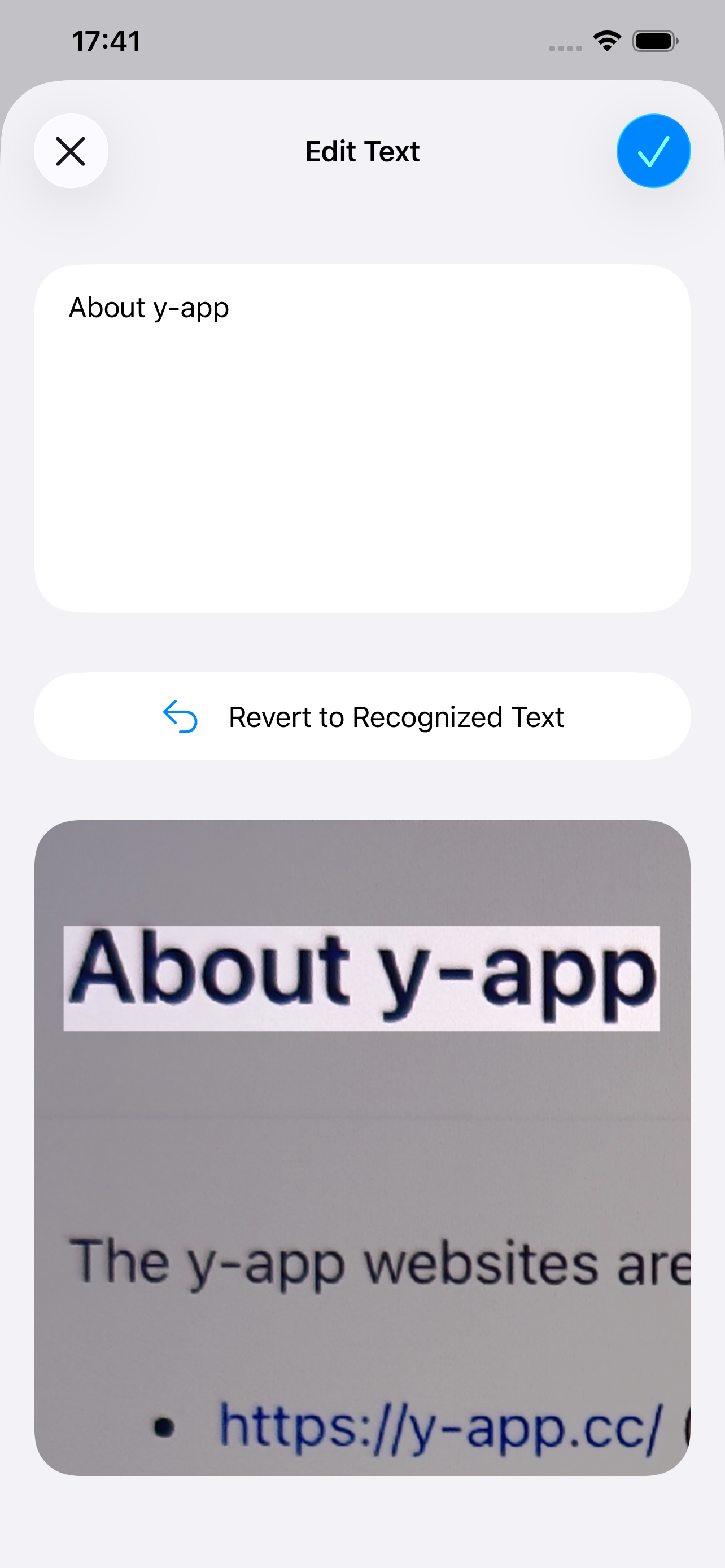
Edit Text screen
On the Edit Text screen, you can correct OCR mistakes while looking at the recognized image.
App Settings
Section titled “App Settings”Open the iPhone Settings app → Apps → Text Snip, or from the button at the top right of the app’s home screen choose App Settings, to change the default values.
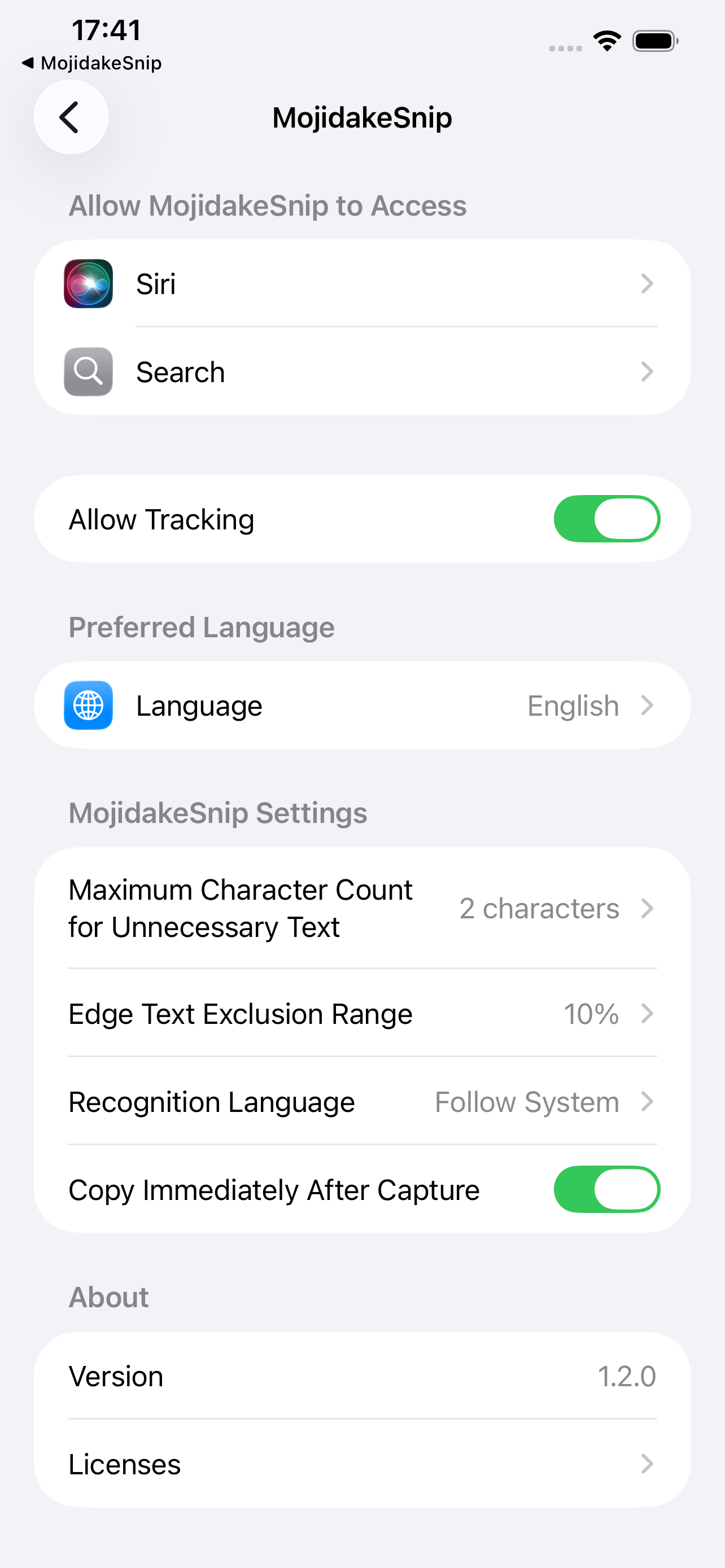
Settings screen
Maximum Character Count for Unnecessary Text
Section titled “Maximum Character Count for Unnecessary Text”Sets how many characters or fewer are treated as unnecessary text. Choose 0 characters to ignore character count when deciding what is unnecessary.
You can also change this per capture on the Needed Text Range editor.
Edge Text Exclusion Range
Section titled “Edge Text Exclusion Range”Treating the image width or height as 100%, sets what percentage of the area from each edge (top, bottom, left, right) to exclude. If you choose 10%, the needed text range is 80%.
If recognized text straddles the exclusion boundary, it is treated as unnecessary when it extends substantially into the excluded side.
Recognition Language
Section titled “Recognition Language”Changes the default language assumed by text recognition.
You can also change this per capture on the Needed Text Range editor.
Copy Immediately After Capture
Section titled “Copy Immediately After Capture”Sets whether to copy immediately after capture or image selection on the home screen.
Support & Contact
Section titled “Support & Contact”For support and inquiries about the app, see About y-app.